How to Connect Google Calendar for Automated Bookings 📅
Turn your AI agent into a scheduling assistant that checks your real-time availability and books meetings instantly.
By The Harmony Team | Integration Guide • 4 min read
Overview
Harmony doesn't just "read" your calendar; it actively manages it. By connecting Google Calendar, you enable your AI agent to negotiate times with customers and perform real actions without you lifting a finger.
💡 Three Core Capabilities
Once connected, your agent gains these abilities:
- Real-Time Availability: It scans your calendar instantly to ensure it never offers a slot that is already taken.
- Smart Negotiation: It presents available times in a friendly, interactive format.
- Instant Booking: It officially creates the event, sends invites to both parties, and blocks the time on your calendar.
Step 1: Connecting Your Account
The setup process is designed to be secure and simple. You only need a Google Workspace or Gmail account.
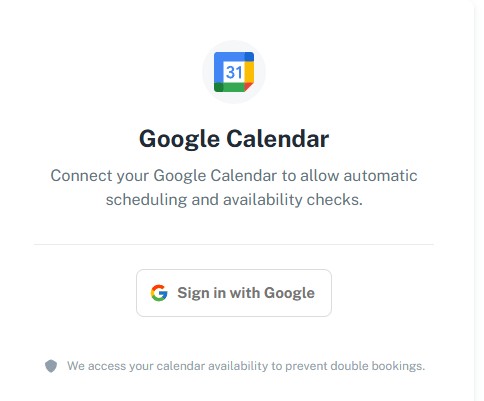 Simply click "Sign in with Google" to authorize the connection.
Go to Integrations
Navigate to the "Integrations" tab in your Harmony Dashboard. Locate the Google Calendar card.
Authorize Access
Click "Sign in with Google." A Google popup will appear. Log in with the account where you want appointments to be booked. Note: You must grant permission to "edit" calendars so the AI can write new appointments.
Verify Status
Once authorized, the status indicator on the card will turn Green (Active). Your agent is now ready to book.
Step 2: How the AI Handles Bookings
Once connected, Harmony follows a "Smart Form" flow to ensure the booking is accurate. Here is exactly what happens during a conversation:
The User Request
It starts when a user says something like "I'd like to schedule a call" or "Book a demo."
The Availability Scan
The AI silently checks your connected calendar for the next 7 days. It filters out your busy times, holidays, and off-hours.
The Interactive Choice
Harmony adapts its interface depending on where the user is chatting:
- On WhatsApp: The AI sends a neat list of text options (e.g., "I have openings this Tuesday at 10:00 AM...").
- On Website Widget: The AI renders an interactive Date & Time Picker for a seamless experience.
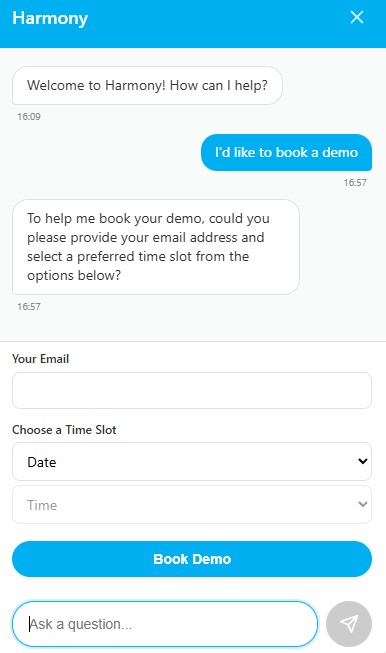 The "Smart Form" widget allows users to pick a time slot directly in the chat.
The Confirmation
Once the user selects a time, the AI officially books the meeting. It sends a calendar invitation to the user's email and adds the event to your schedule immediately.
Advanced Customization
You can tweak how the booking engine works in your Global Settings:
- Meeting Duration: Set your default meeting length (e.g., 15, 30, or 60 minutes).
- Time Zones: Harmony automatically detects where your customer is located and converts time slots to their local time zone to avoid confusion.